
This article will guide you through setting up the No-Password Login feature in Brillocraft, allowing customers to log in seamlessly without using a password.
Step 1: Install and Open Shopify Headless Sales Channel
- From your Shopify Admin, install Headless (Shopify’s free sales channel).
- Open the Headless sales channel.
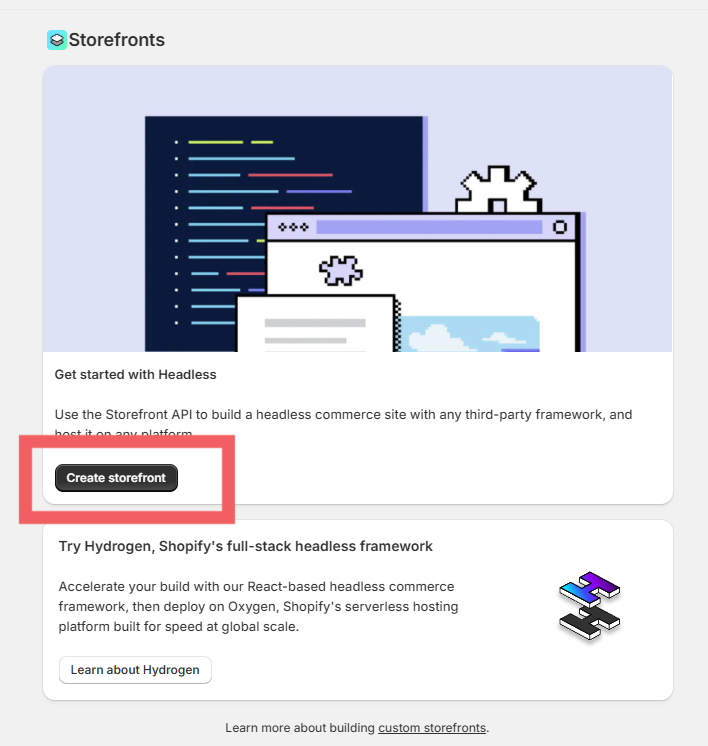
Step 2: Create a New Headless Storefront
- Inside the Headless sales channel, create a new Headless storefront.
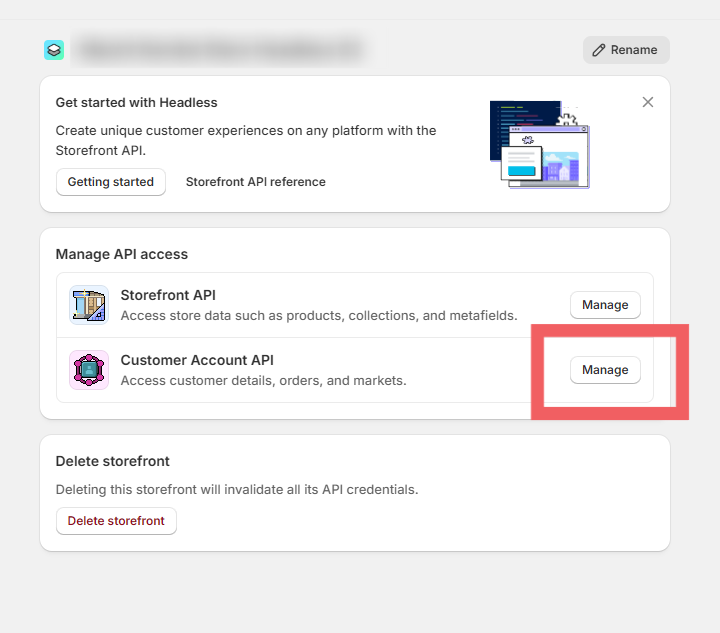
Step 3: Manage Customer Account API
- Click Manage Customer Account API.
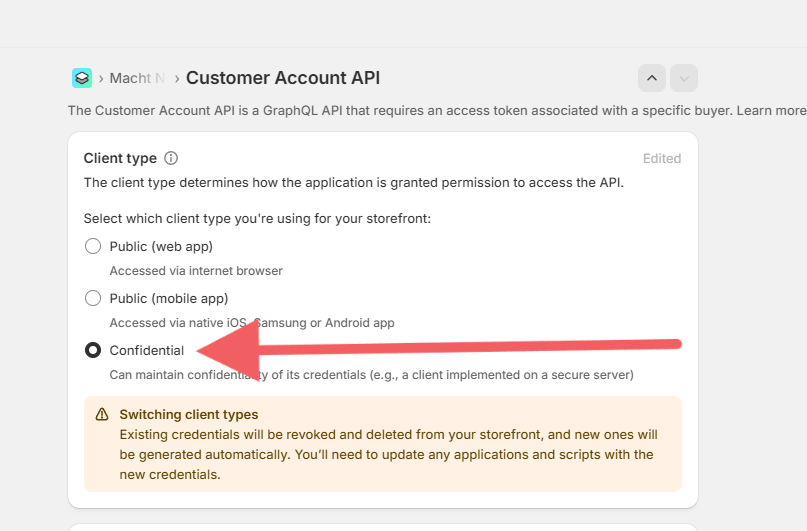
Step 4: Update Client Type
- In the Client Type section, change the type to Confidential.
- Click Save.
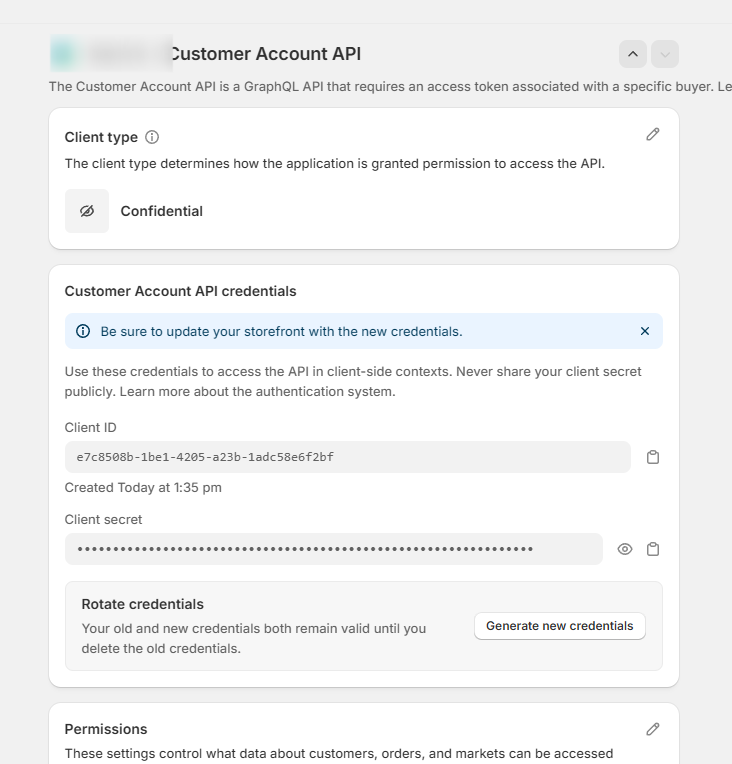
Step 5: Copy API Credentials
- Scroll down to the Customer Account API Credentials section.
- Copy the Client ID and Client Secret.
- Save them in a secure place — you will need them in Brillocraft.
Step 6: Configure No-Password Login in Brillocraft
- Go back to Brillocraft Dashboard.
- Navigate to User Acquisition.
- Open the section Related tools & integrations.
- Click View all.
- Find No-Password Login and click Set up.
Step 7: Paste Shopify Credentials
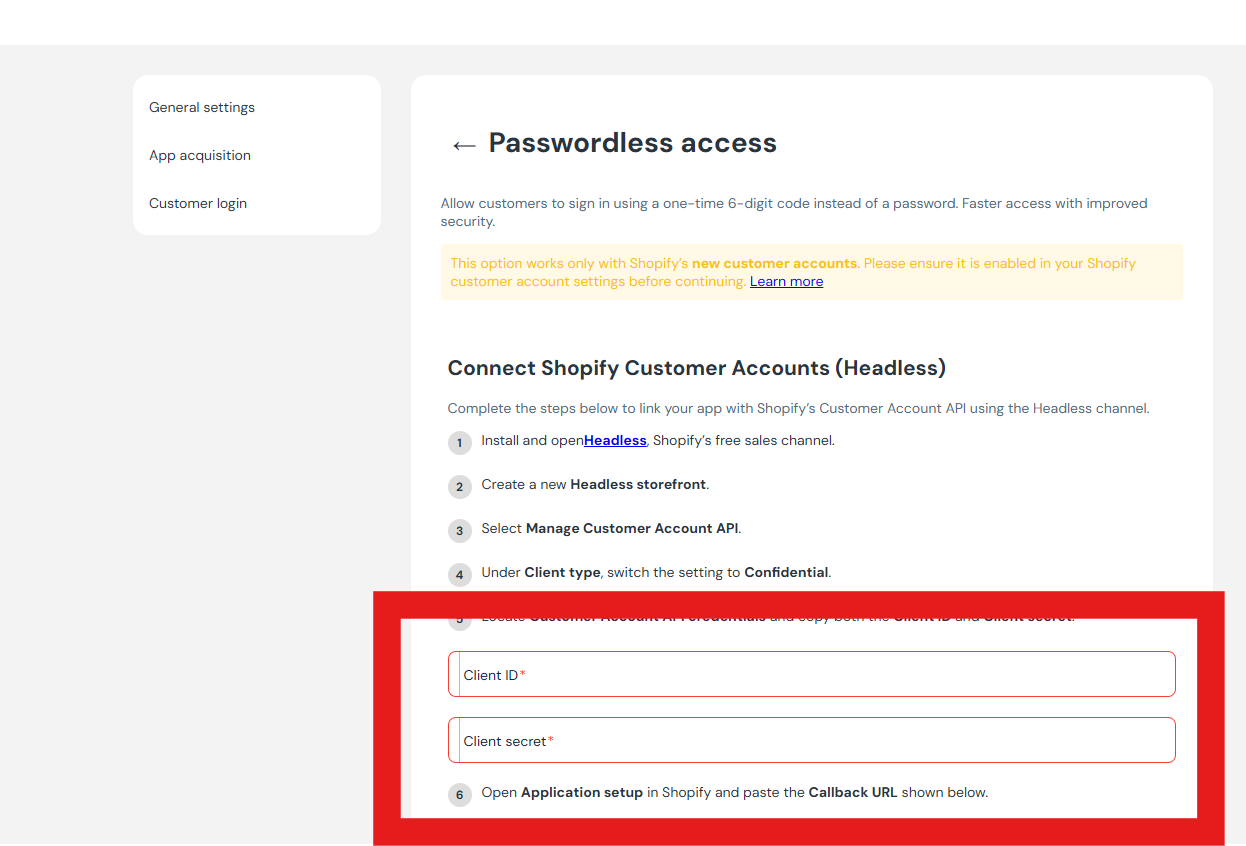
- Paste the copied Client ID and Client Secret into the required input fields.
Step 8: Activate No-Password Login
- Toggle Status at the top to activate No-Password Login.
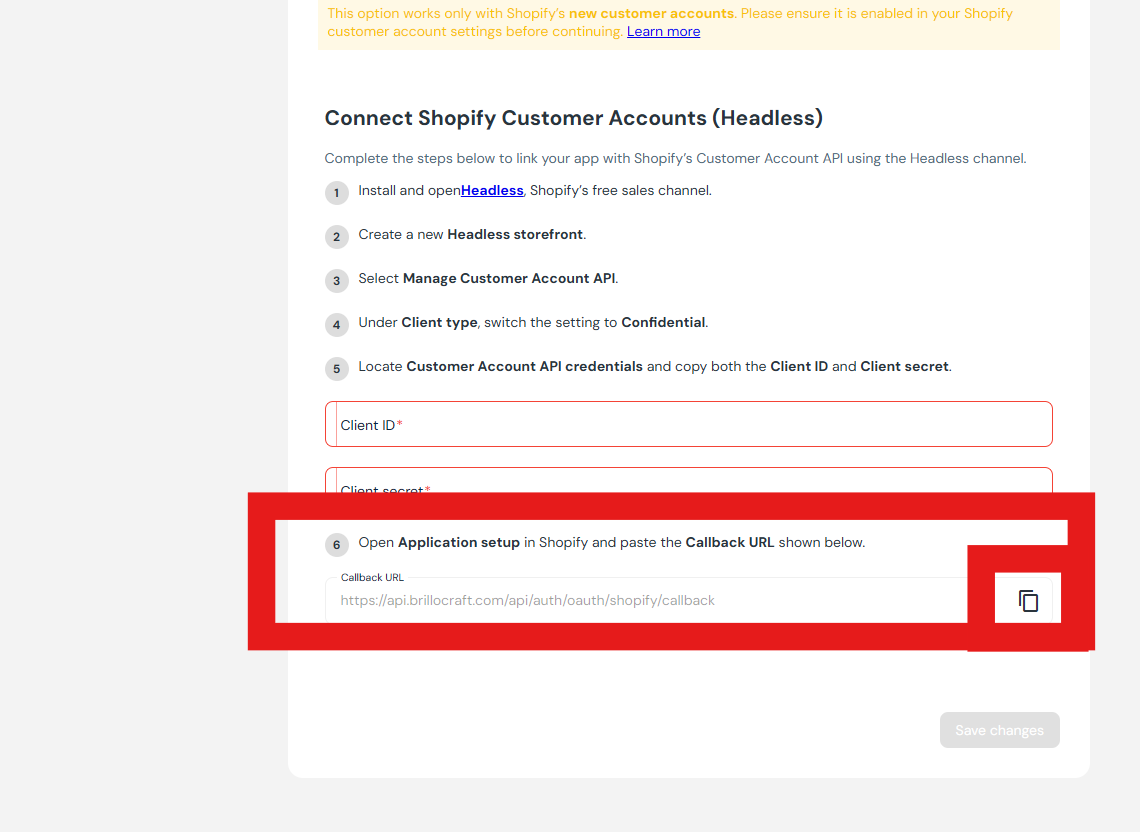
Step 9: Copy Callback URI
- Copy the Callback URI displayed in Brillocraft.
Step 10: Add Callback URI in Shopify
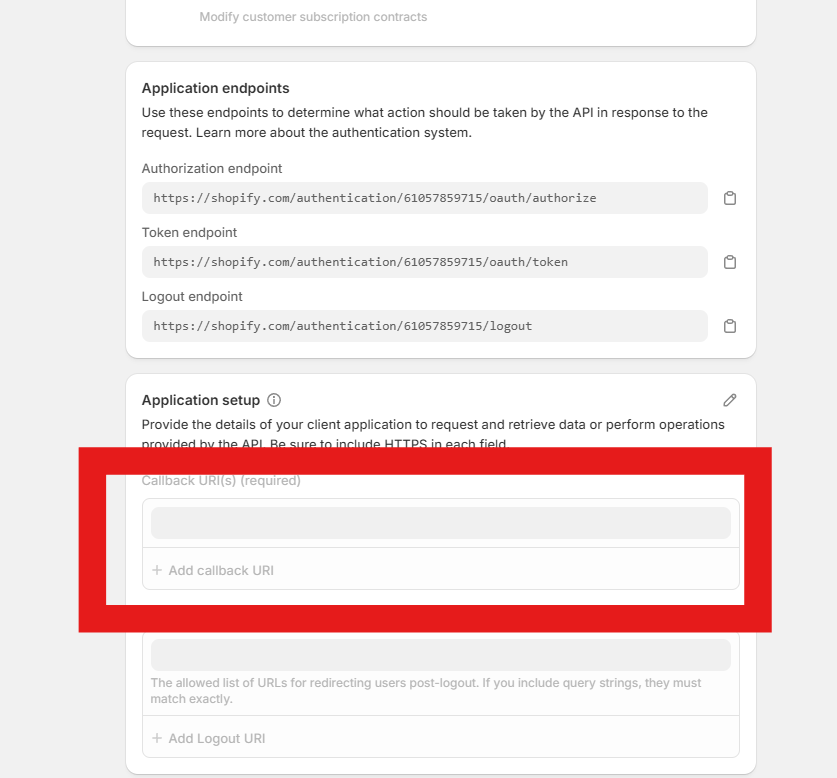
- Return to Shopify Headless → Customer Account API.
- Click Manage.
- Paste the copied Callback URI into the required field.
- Click Save at the top of the page.
Conclusion
Setting up No-Password Login in Brillocraft improves the customer experience by enabling fast, seamless, and secure access to your mobile app—without requiring passwords.