This article walks you through how to grant BrilloCraft access to your developer accounts on Google Play and Apple App Store Connect.
Providing admin access allows our team to handle app submission, updates, certificates, and store management smoothly on your behalf.
1. Invite Brillocraft to Your Google Play Developer Account
Follow these steps to give Brillocraft access to your Google Play Console:
Go to the Google Play Console and sign in with your Google account.
From the left sidebar, click Users and permissions.
Click Invite new user.
Enter the following email address:
support@brillocraft.comAssign the role Admin (or full permissions).
Save and send the invitation.
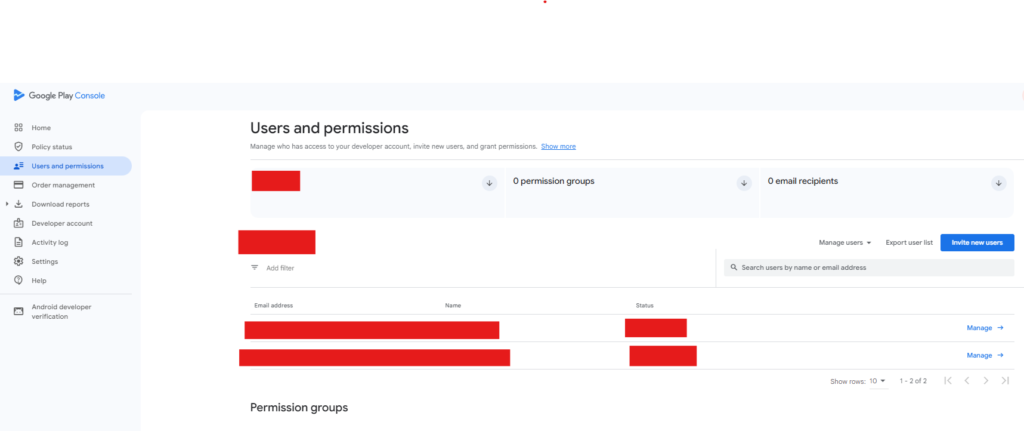
Once accepted, the Brillocraft team will be able to manage app uploads, updates, and store-related settings.
2. Invite Brillocraft to Your Apple Developer Account
To grant Brillocraft access to your Apple developer account, follow these steps on App Store Connect:
Go to App Store Connect and sign in with your Apple ID.
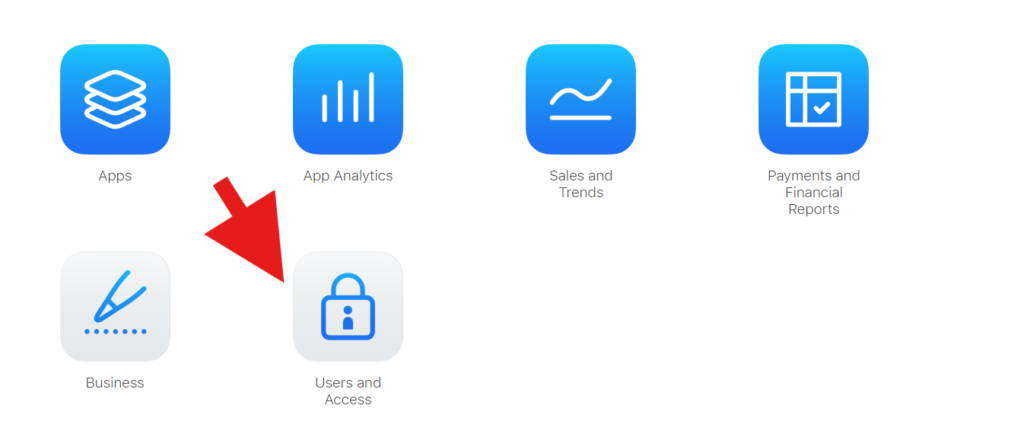
Navigate to Users and Access.
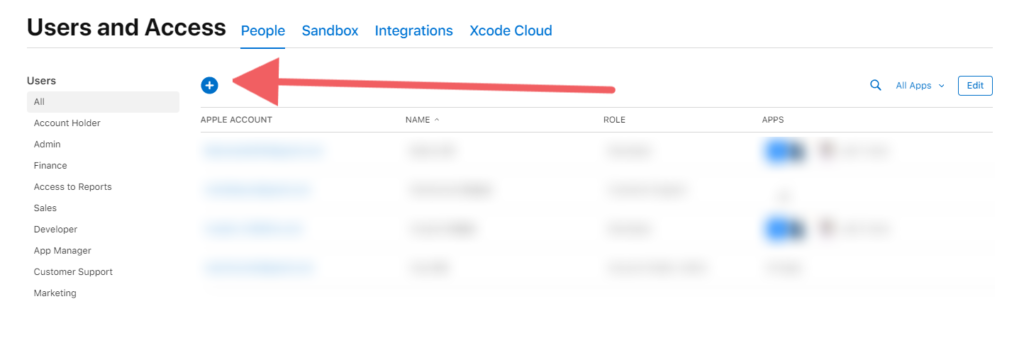
Click Add User.
Enter the following details:
First Name: Brillocraft
Last Name: Team
Email: support@brillocraft.com
Assign the role Admin, with access to all Additional Resources.
Send the invitation.
This ensures our team can manage certificates, provisioning profiles, TestFlight, and App Store submissions efficiently.
Conclusion
By inviting Brillocraft to your Google Play and Apple developer accounts, you enable us to fully support you with app publishing, updates, and ongoing maintenance—saving you time and avoiding common submission issues.
If you have any questions or prefer to use Brillocraft-managed developer accounts, feel free to reach out to our support team.