To publish your Brillocraft mobile app on Google Play, you must create an Android developer account. This guide explains how to set it up step by step.
Table of Contents
Sign Up for a Google Play Developer Account
Complete Account Setup
Finalize & Activate Your Account
1. Sign Up for a Google Play Developer Account
Go to the Google Play Console.
Sign in using your Gmail account.
Google may require 2-Step Verification.
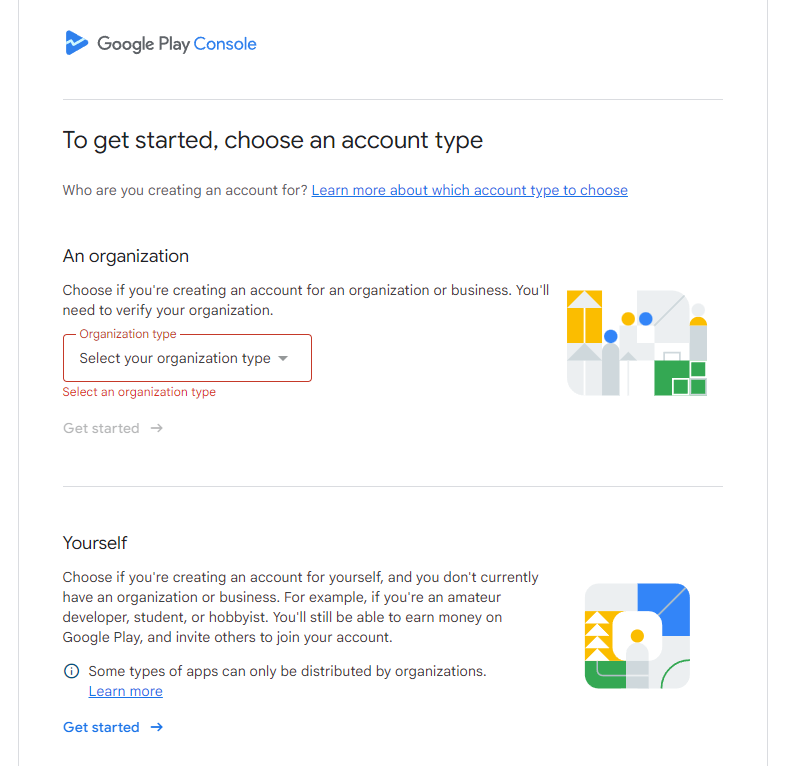
Choose your account type:
Personal – for individual use
Organization – for businesses
2. Complete Account Setup
Fill in the required personal or company details.
Review and accept the Google Play Developer Agreement and Terms of Service.
Click Create account and pay.
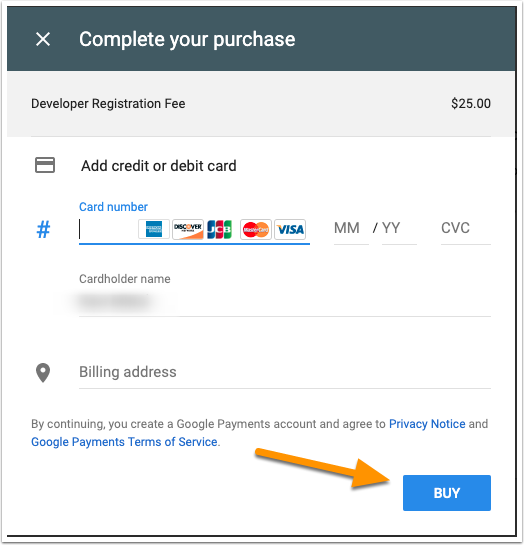
Enter your billing information and pay the one-time registration fee.
3. Finalize & Activate the Account
Google may take up to 48 hours to process your payment.
Once approved, your account will be activated automatically.
You can now publish apps on Google Play ✅
What’s Next?
After your Android developer account is active, please refer to our guide on inviting Brillocraft to your Google Play Console. This allows us to upload, update, and manage your Android app under your own account.
Final Notes
Creating developer accounts on Apple App Store and Google Play is a required step to launch your Brillocraft mobile app under your own brand.
If you face any issues during setup, you can always consult Apple or Google’s official support pages—or contact the Brillocraft team for guidance.