This article will guide you through setting up the Smart Download Prompt in Brillocraft. This feature intelligently suggests or initiates app downloads based on user context, making it easy for visitors to download your mobile app.
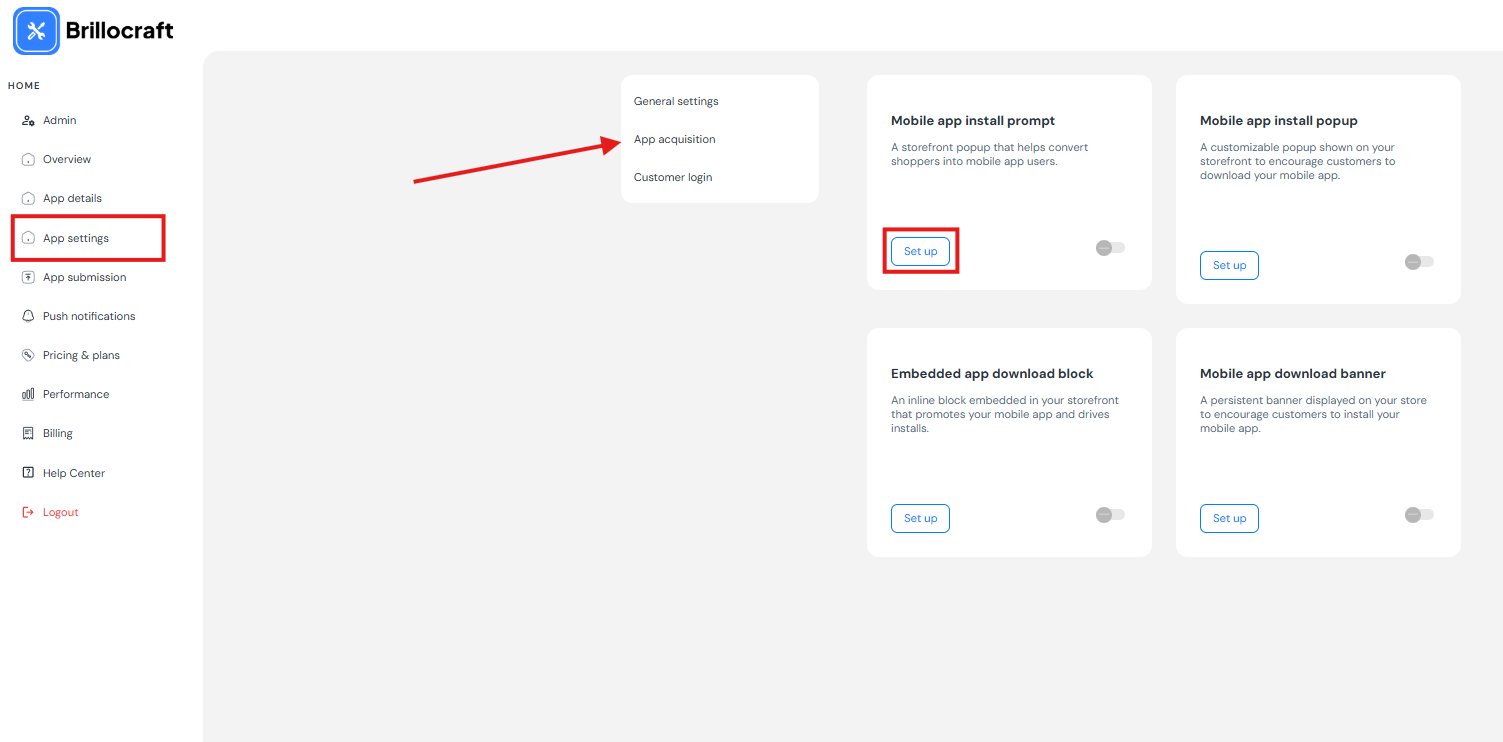
Step 1: Open Smart Download Prompt Settings
- Go to Brillocraft Dashboard.
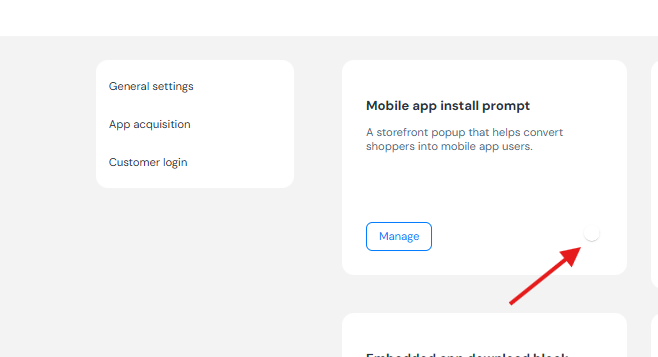
- Navigate to User Acquisition → Smart Download Prompt.
- Click Set Up.
Step 2: Configure the Smart Download Prompt
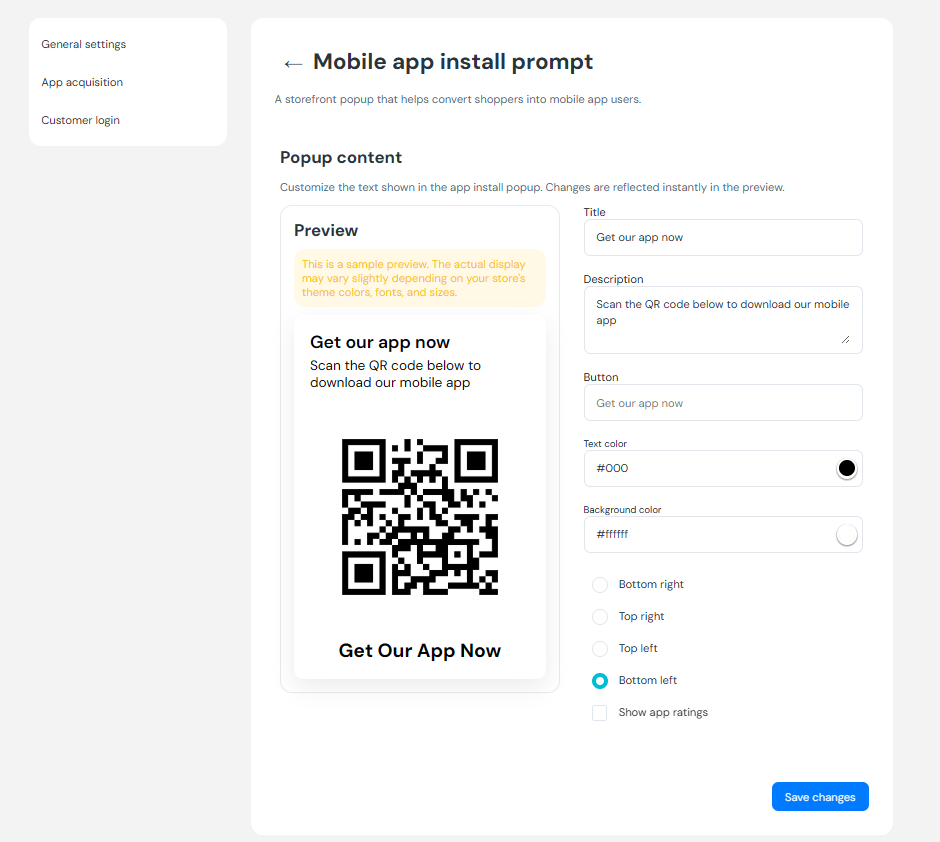
Use the options below to customize how the Smart Download Prompt appears on your store:
Title
Enter a clear and engaging title for your widget (maximum 40 characters).
Example: GET OUR APP NOW
Description
Provide a short description to guide users (maximum 22 characters).
Example: Scan the code below
Show App Rating and Downloads on Widget
Enable this option to display your app’s rating and download count on the widget.
This option is only available if:
- The app rating is above 3.5
- The app has more than 50 downloads
Background Color
Select or enter a hex color code for the widget’s background.
Text Color
Select or enter a hex color code for the widget’s text color.
Position
Choose where the widget appears on the page:
- Bottom-right
- Bottom-left
- Top-right
- Top-left
QR Magic Link
Use the generated QR Magic Link to direct users to the correct app store (iOS or Android).
You can copy this link to:
- Share it directly
- Embed it on pages
- Use it in campaigns or banners
Step 3: Activate the Smart Download Prompt
- Make sure the Status toggle is switched to Active.
- Click Save in the top-right corner.
Notes
- To use the Smart Download Prompt on your storefront, your mobile app must be published.
- App publishing requires completing your app design before enabling the widget.
Conclusion
The Smart Download Prompt in Brillocraft helps you convert store visitors into mobile app users by promoting your app at the right moment with a simple, customizable widget.