This article will guide you through setting up the Download App block (Embedded Download Block) in Brillocraft. This feature helps promote your mobile app directly inside your storefront by encouraging visitors to download the app at the right moment.
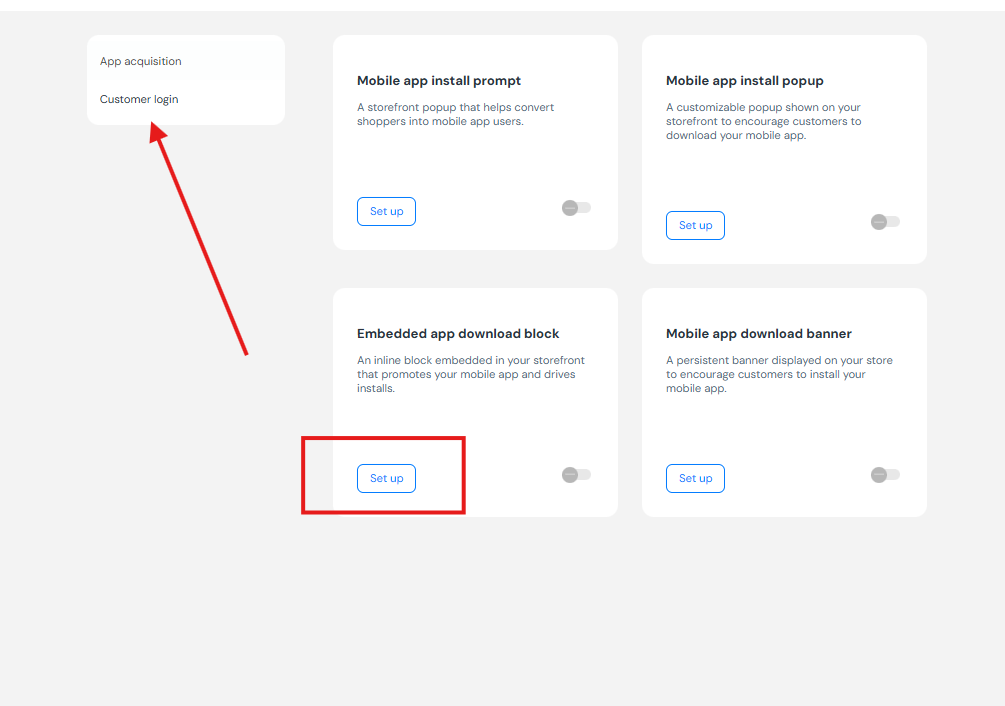
Step 1: Open Embedded Download Block Settings
- Go to Brillocraft Dashboard.
- Navigate to User Acquisition → Embedded Download Block.
- Click Set Up.
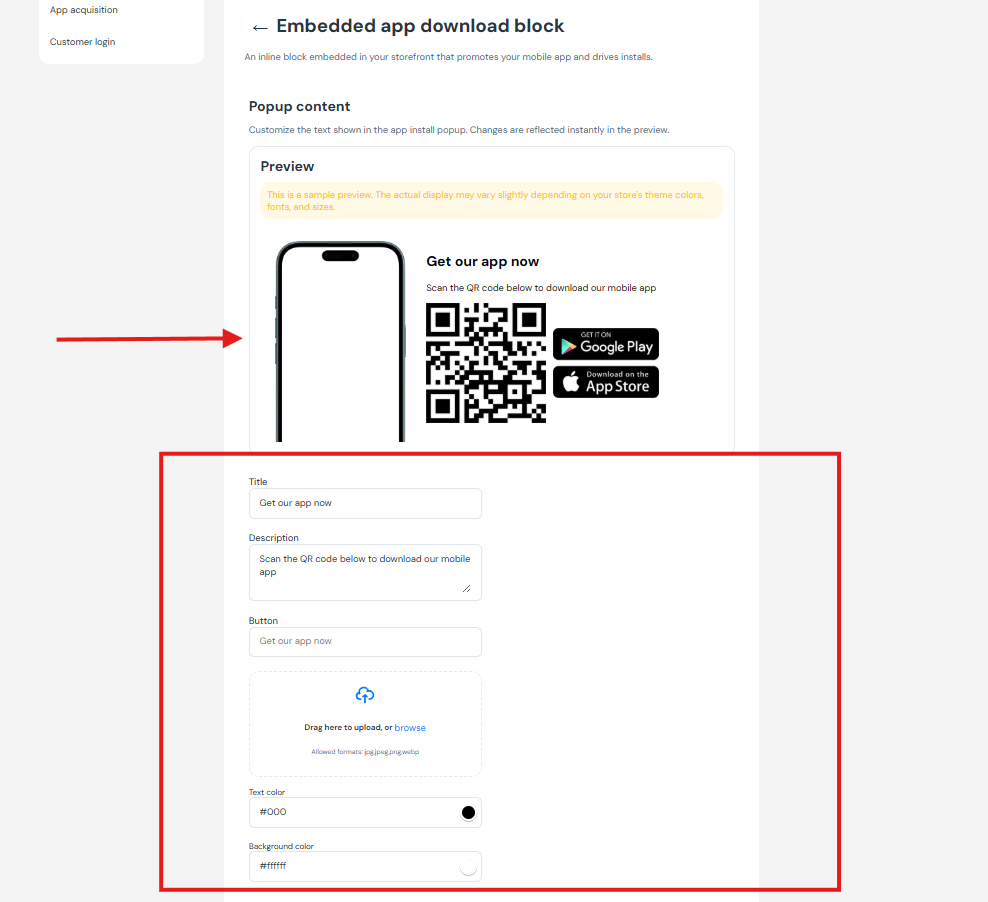
Step 2: Configure the Embedded Download Block
There are five required fields to complete the setup:
Screenshot
Upload an image that represents your app. This image will be displayed in the widget and gives users a visual preview of what to expect after downloading the app.
Title
Enter a catchy and concise title for the widget.
- Maximum length: 22 characters
Example: GET OUR APP NOW
Description
Provide a short description highlighting the benefits of your app.
- Maximum length: 50 characters
- You may include special offers or key features
Show App Rating and Downloads on Widget
Enable this option to display your app’s rating and download count on the widget.
This option is only available if:
- App rating is above 3.5
- App has more than 50 downloads
QR Magic Link
Use the generated QR Magic Link to redirect users to the correct app store (iOS or Android).
This link can be used for:
- Redirecting users automatically
- Sharing externally
- Embedding within pages
Step 3: Activate the Embedded Download Block (Shopify)
- Make sure the Status toggle is set to Active.
- Preview the block using both Mobile and Desktop Preview windows to ensure proper alignment.
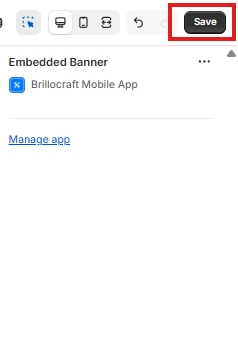
- Click Save in the top-right corner.
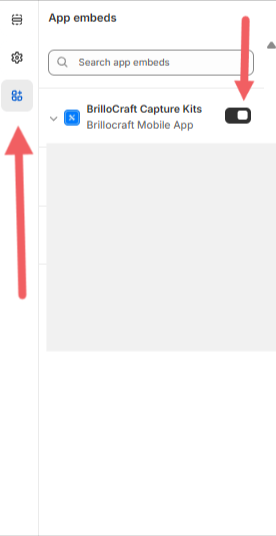
Step 4: Publish the Download App Block to Your Store
(Shopify)
- Use the helper button at the top to view instructions on how to publish the block.
- Open Shopify Theme Editor.
- Click the button to proceed with customizing your store theme.
Step 5: Add the App Block in Shopify
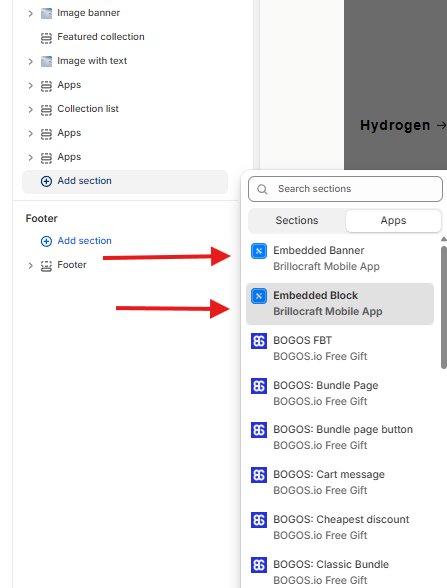
- In the Shopify theme editor, add a new section.
- Find Brillocraft – Download App Block.
- Drag and place the app block into the desired location in your store theme.
- Click Save to activate the block on your storefront.
Notes
- To use the Embedded Download Block on your storefront, your mobile app must be published.
- Publishing requires completing your app design before enabling the app block.
Conclusion
Displaying the Embedded Download Block helps convert store visitors into mobile app users by promoting your app directly within your storefront.