The Customizable Download Popup helps you promote your mobile app directly on your storefront. It allows you to show targeted messages based on customer behavior, encouraging visitors to download your app and stay connected with your brand.
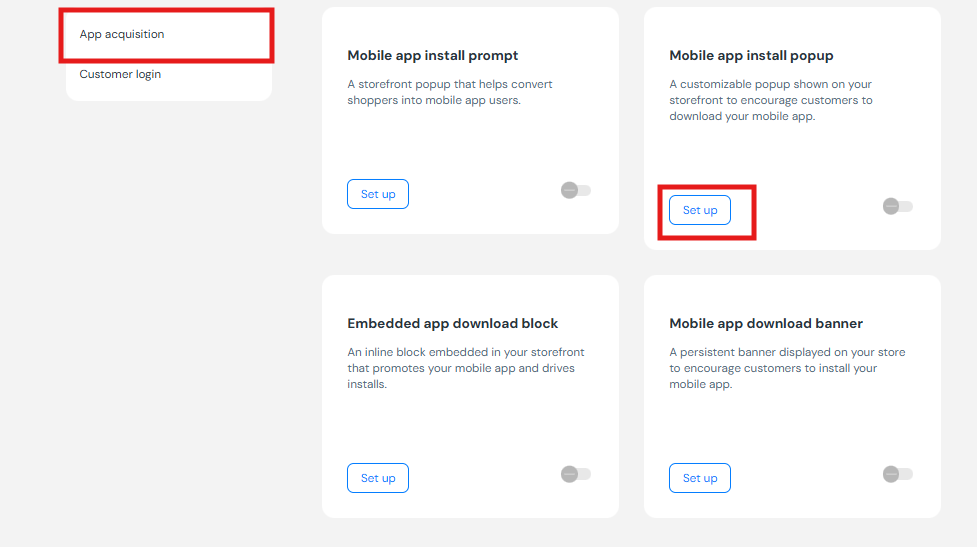
Step 1: Access the Customizable Download Popup
From your dashboard, go to
User Acquisition → App PromotionOpen the Customizable Download Popup tab
Click Set Up
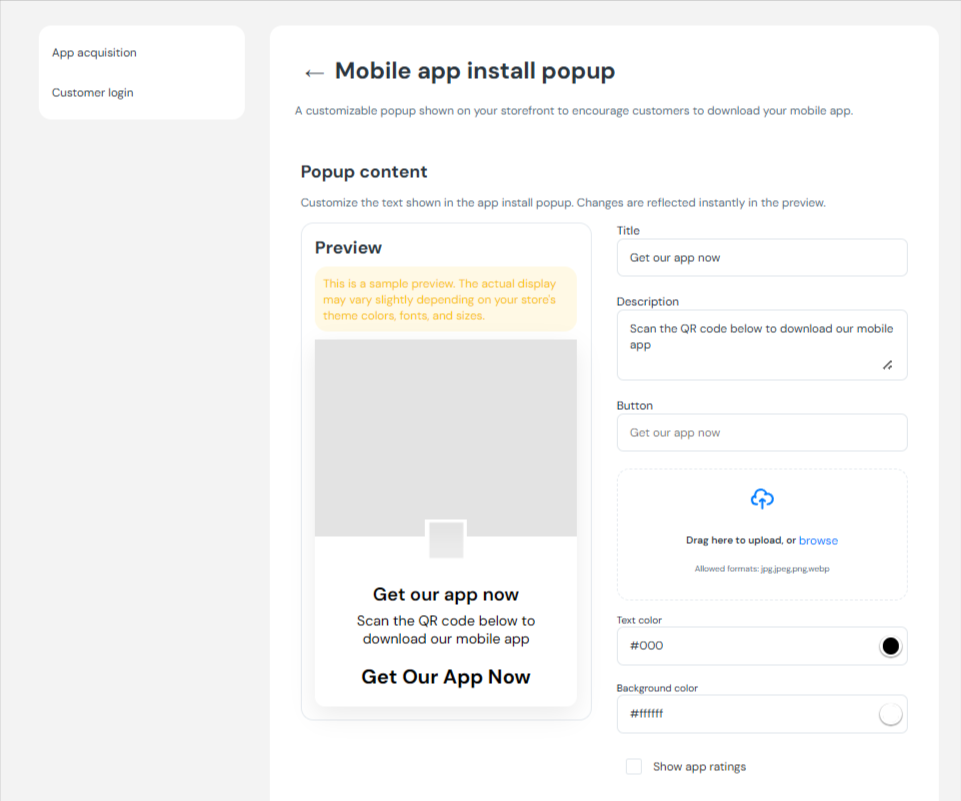
Step 2: Configure the Popup Settings
Use the options below to customize how and when the popup appears.
Banner
Click Upload image to add a banner.
Use a clear, eye-catching visual that supports your app promotion.
Content – Title
Enter a short, engaging title (up to 40 characters).
This should quickly communicate the value of downloading your app.
Content – Description (optional)
Add an optional description (up to 50 characters).
Example: “Available on iOS & Android”
Content – Button Text
Set a concise call-to-action (up to 12 characters).
Example: “Get app now”
Button Background & Button Text Color
Choose colors by entering a hex code or selecting from the color picker.
Make sure the button stands out and matches your brand.
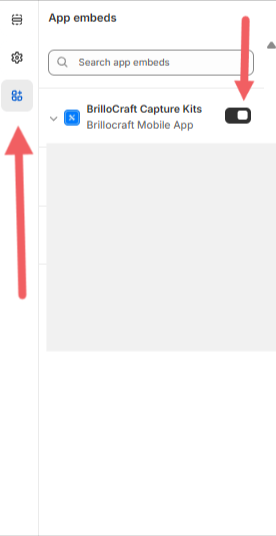
Step 3: Enable the Popup on Your Storefront
Go to Online Store → Theme
Click Customize
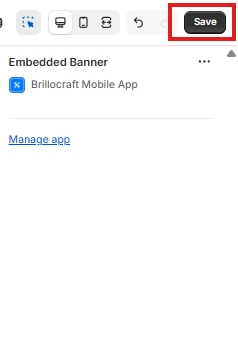
Open App Embed
Turn on the toggle for OneMobile Popup
Click Save
Important Notes
To use the popup on your storefront, your mobile app must be published.
Your app design must be completed before publishing the app block.
Once enabled, the popup will appear.